Can You Use a TV as a Gaming Monitor?
A television can work as a gaming display, and for console games, couch multiplayer or a large living-room setup it can be an excellent choice. It is less convincing as a daily PC monitor, where sharp text, precise mouse control and consistently low display latency matter. A 4K television may also deliver a better picture than a cheaper monitor, but size alone does not guarantee gaming performance.
The useful comparison therefore covers picture processing, panel response, gaming features, viewing distance and how long static content stays on screen. Australian buyers should also account for locally sold panel sizes, mains power, room temperatures and the risk of replacing an expensive large screen if it proves awkward for desk use.
TVs and monitors serve different purposes
Most televisions are designed to be viewed from across a room. Their processors prioritise cinematic contrast, HDR, upscaling and smart-TV functions, while monitors are tuned for a screen positioned roughly an arm’s length away. A monitor usually offers denser pixels at common desk sizes, a more compact stand and easier access to inputs, although a premium 27-inch or 32-inch 4K monitor can cost more than a mid-sized TV.
Local pricing reflects that difference. At JB Hi-Fi, Harvey Norman and The Good Guys, 55-inch 4K televisions commonly fall around AUD $700 to $1,200, while 65-inch models often sit between AUD $1,000 and AUD $2,000 depending on panel type and gaming features. Prices change during sales, so compare the exact model rather than using screen size as the only guide. A larger television may offer better value for console gaming, while a monitor provides more pixels per square centimetre for desktop work.
Apartment living makes placement especially important. In Sydney, Melbourne and Brisbane, a wall-mounted television may serve as the main display in a compact lounge, with a separate monitor needed for work. At a desk, a 55-inch panel can feel oversized, and text may soften when Windows or macOS renders interface elements. A 65-inch set becomes more practical around 1.5 to 2.5 metres away, which suits a sofa but rarely a standard workstation.
Input lag and response time
Input lag is the delay between a game accepting a command and the corresponding image appearing. It is separate from response time, which describes how long a pixel takes to change brightness or colour. Many gaming monitors measure around 0.5 to 2 milliseconds of input lag. Television results vary widely: a well-tuned game mode may land around 10 to 30 milliseconds, while processing-heavy picture modes can exceed 50 milliseconds.
That gap can matter in competitive shooters, fighting games and rhythm games, where a late response may feel as though the character or reticle is moving independently of the player. Single-player adventures, strategy games and racing usually tolerate more delay, especially when the television is viewed from a distance. Compare measured display-to-display latency rather than a manufacturer’s generic gaming claim, and include your controller or mouse in the test.
Response time also affects clarity during movement. A monitor with a fast transition and predictable overdrive can keep edges crisp, whereas some television panels produce visible blur or inverse ghosting around high-contrast objects. Disable motion smoothing, which creates interpolation frames and can make aiming feel unnatural, and use the television’s game mode to reduce processing. Turn off extra cinematic processing and ambient effects when competitive responsiveness matters.
Gaming features and picture quality
Modern televisions can be well equipped for gaming. Look for HDMI 2.1, 4K at 120 Hz, HDMI VRR and ALLM, which automatically switches to a low-latency picture mode. These features suit the PlayStation 5, Xbox Series X and high-refresh PCs, but marketing labels need checking: some sets accept 4K at 120 Hz only at reduced colour depth, and PC VRR may operate over a narrower range than the advertised maximum.
Picture quality still depends on the source. A native 4K PC or console can make good use of a television’s resolution, while compressed streaming, 1080p games and scaled desktop interfaces reveal the processor more clearly. HDR games may look impressive, but peak brightness ratings do not guarantee sustained brightness. A bright living room can also make dim panels difficult to see, and aggressive TV image processing can erase detail that a neutral monitor preset preserves.
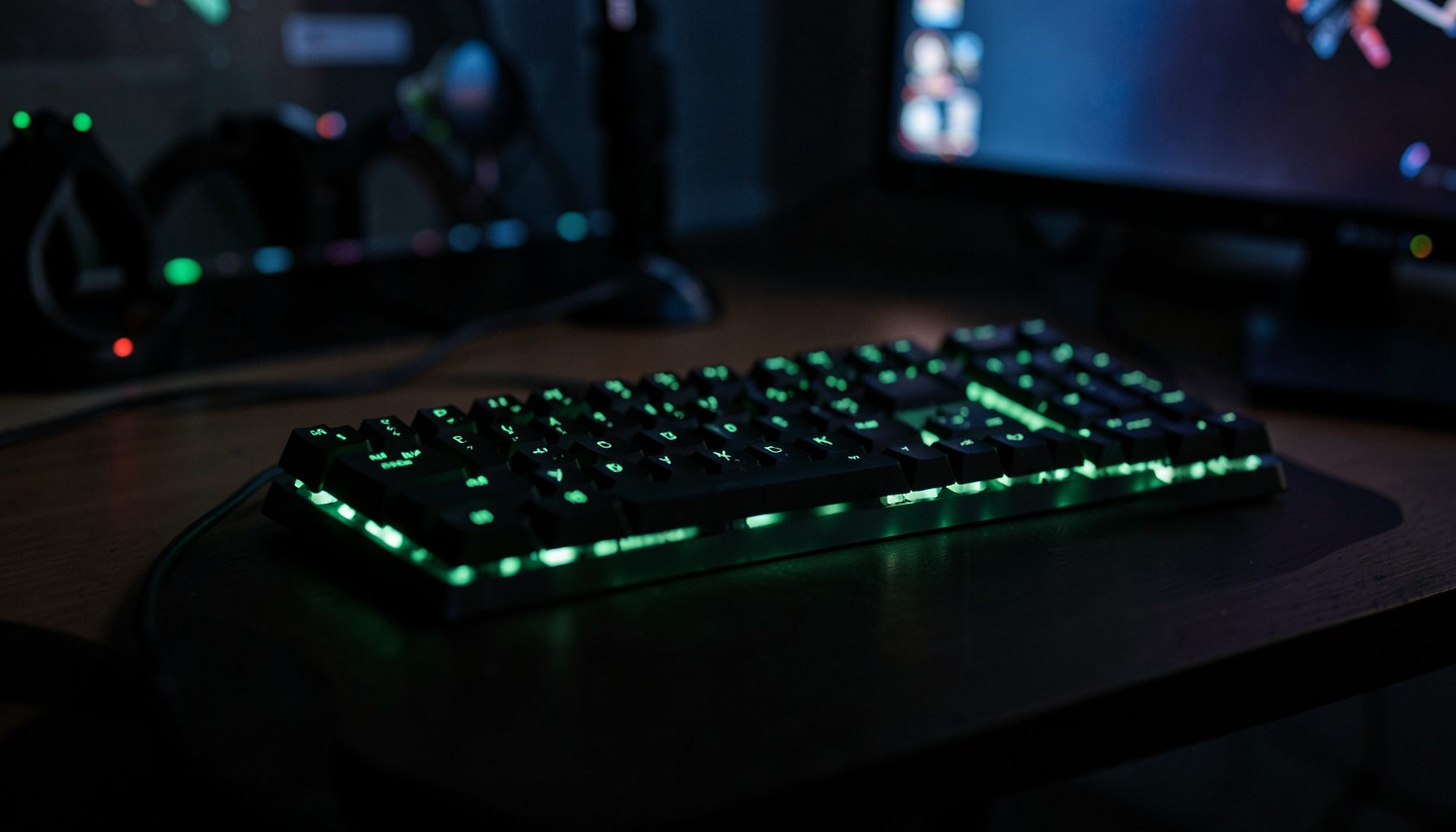
Size should follow viewing distance, not price. The images from Jadevine Photo provide a visual perspective on how a large panel changes sightlines. For a desk, check whether icons and small text remain crisp from your normal seated position; for a sofa, consider whether the entire image is visible without looking around the screen. Overscan can also crop Windows edges, so verify the PC’s aspect ratio and scaling settings.
Burn-in risks and screen longevity
Burn-in needs careful definition. OLED pixels gradually lose uniformity when bright static elements remain in place, so game HUDs, scoreboards, chat windows and desktop taskbars can leave faint marks over time. The risk grows with high brightness, long daily use and leaving the same interface onscreen, but it is not inevitable or immediately visible. Manufacturers continually improve OLED compensation, and panel size, duty cycle and viewing habits all affect longevity.
LCD and LED-backlit televisions do not develop OLED-style permanent burn-in, although temporary image persistence, uneven backlighting or panel defects can occur. They can still be a poor choice for a constantly lit trading dashboard or office monitor. Lowering brightness, hiding desktop icons, enabling a console’s automatic blank-screen function and taking regular breaks reduces static-image stress. Pixel-shift and panel-refresh features help on supported sets, but should supplement rather than replace sensible habits.
Local conditions matter too. Australian mains power runs at a nominal 230 to 240 volts, so use a suitable surge-protected powerboard and avoid daisy-chaining extensions. Queensland summers and hot western Australian afternoons can raise the operating temperature around a large television; keep ventilation clear and avoid direct sunlight. Australian Consumer Law rights, manufacturer warranties and retailer-specific extended cover can affect repair or replacement options, so retain the purchase details and check exclusions for panel wear.
Practical choices for Australian gamers
Choose according to the display’s main job, then check the specifications that affect that job:
- Use a low-latency gaming monitor for competitive shooters, fighting games and ranked online play, prioritising measured input lag below 2 milliseconds.
- Select a 4K television with 120 Hz, VRR and ALLM for living-room console gaming, couch multiplayer and cinematic single-player games.
- Keep a smaller 4K gaming monitor on the desk when work, browsing and games share the same room.
- Treat OLED burn-in as a long-term budgeting issue when the same HUD or desktop interface will remain visible for many hours each day.
- Choose an LCD or LED-backlit model for bright rooms, frequent static dashboards or buyers prioritising lower long-term image-retention risk.
- Test the exact model in game mode, at the intended viewing distance and with the final controller before committing to a large wall-mounted installation.
A television works best when its strengths match the room. Bigger pixels and stronger contrast do not compensate for excessive lag, while excellent latency cannot fix poor desktop ergonomics. If gaming and everyday computing are equally important, two displays usually create a better result than forcing one panel to serve as a monitor and a cinema screen.
| Factor | Gaming monitor | TV used at a desk | TV in a living room |
|---|---|---|---|
| Input lag | Usually around 0.5–2 ms | Often 10–30 ms in game mode | Often 10–30 ms in game mode |
| Pixel response | Fast and predictable | Can blur fine interface elements | Less noticeable at distance |
| Refresh and VRR | 144 Hz and above are common | Model-dependent; check desktop support | 120 Hz and VRR are widely available |
| Desktop clarity | Excellent for text and precision work | Mixed because of size and scaling | Poor placement for normal desktop use |
| Burn-in risk | Depends on panel technology | OLED risk increases with static content | LCD avoids OLED burn-in; OLED needs care |
| Strongest use | Competitive PC gaming | Light gaming and productivity | Console gaming and shared entertainment |
Before checkout, measure your viewing distance, confirm the exact HDMI bandwidth and VRR limits, read the Australian warranty terms and compare current AUD prices. Set a firm budget, then buy the model that keeps your most-used games responsive and fits the room without compromising everyday use.