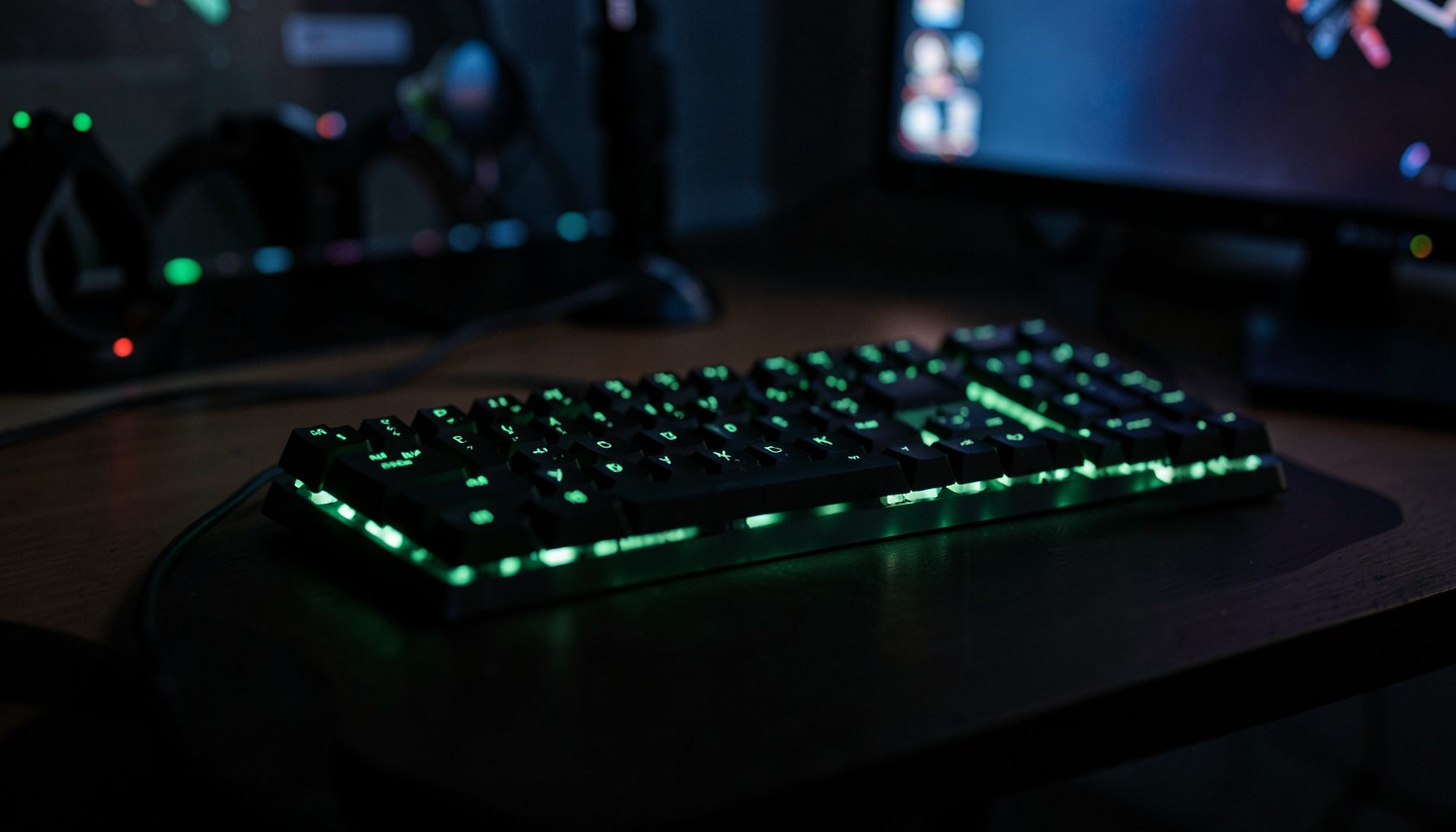
Set up dual monitors for productivity and gaming
A two-screen arrangement gives you room to keep documents, chat and recording tools visible while the main display carries a game or creative application. Done well, it feels like one larger workspace. Done badly, tiny text, cable clutter and awkward window placement can make a premium setup worse than a single good monitor.
For most Australian players, a strong all-round pairing is a 27-inch 2560 by 1440 gaming panel with a high refresh rate, paired with a 24- or 27-inch secondary screen for browsing and office work. Competitive players may prefer a smaller, very fast display for the game and a larger productivity panel beside it. Choose by workload, not by whichever monitor happens to be on special.
Resolution, refresh rate and graphics-card bandwidth need to work as a team. Two demanding 4K panels at 144 Hz or above can overwhelm ports that look identical on the back of a graphics card, while mismatched scaling can make moving a spreadsheet between screens feel clumsy. Check the whole signal path before buying, especially if a laptop and dock supply the displays.
Australian desks are often compact, so measure before committing to wide monitors. Power uses 230-volt mains and Type I plugs, and strong daylight can make some panels difficult to view in a Sydney, Melbourne or Brisbane home office. Local prices normally include GST, and established sellers such as JB Hi-Fi, Centre Com, PLE and Umart make comparison easier. A little planning saves plenty of no dramas later.
Choose the right monitor pair
Assign each display a clear role. The gaming screen should favour low input lag, a high refresh rate and the resolution your GPU can sustain. The work screen should favour readable text, accurate colour or useful desk space. A 27-inch 1440p display at 165 or 180 Hz is a sensible mainstream gaming choice, while a 24-inch 1080p model at 144 Hz can suit fast shooters and competitive esports.
For productivity, a 27-inch 4K monitor packs more pixels into a similar footprint and is excellent for documents, timelines and dense spreadsheets, although text-heavy Windows scaling may take adjustment. IPS panels are a safe choice for clarity and colour, VA panels offer deeper blacks, and OLED models deliver superb motion with a burn-in consideration. If both screens will show the same desktop, matching their size and resolution usually makes application switching easier.
Refresh rates may differ without causing a problem, although colour and brightness mismatches are more noticeable. An ultrawide monitor can replace a dual-screen desk for some people, but it costs more and leaves no natural separation between work and play. Two standard panels also let you rotate one vertically, close a distracting game and keep a reference visible.
Plan the desk around both screens
Measure the desk width, depth and the route to each wall outlet. A 120 cm desk can hold two 24-inch screens comfortably but may feel crowded with two 27-inch models, while a 140 cm surface offers more breathing room. Australian stores commonly sell desks around those sizes, so check local options such as IKEA Australia’s MICKE and LAGKAPTEN ranges rather than ordering a foreign-sized frame online.
A pair of monitor arms creates desk space and makes portrait use straightforward. Confirm that each arm supports the panel’s weight and VESA pattern, usually 75 by 75 mm or 100 by 100 mm. Use a clamp on a suitable edge or a grommet mount if the desk has a cable opening. Set the primary screen’s upper edge close to eye level, angle the second display inward and leave enough gap for vents, speakers and a webcam.
Route display cables through an arm or under-desk tray, but keep power bricks off the floor where they can gather dust. A quality surge protector with Australian-compatible sockets adds useful protection, while labelling cables makes troubleshooting much easier. For online games and large downloads, a wired Ethernet connection is preferable to congested Wi-Fi, especially on Australian NBN connections or busy shared households.
Connect the displays without bottlenecks
Inspect the outputs on the computer you plan to use. For a desktop, connect both monitors directly to the graphics card rather than mixing GPU and motherboard outputs unnecessarily. DisplayPort is usually the best PC gaming option because high-refresh 1440p and multi-monitor arrangements are broadly supported, while HDMI remains useful for consoles and some televisions. Adapters can introduce refresh-rate or HDR limitations, so native cables are preferable.
Bandwidth depends on the port standard, cable, resolution and refresh rate. DisplayPort 1.4 with High Bandwidth 3 can carry demanding 4K modes with compression, while DisplayPort 2.1 provides a newer path for future hardware. A laptop dock may use MST to extend two displays, but that can share bandwidth between them. Check the dock’s model-specific support for 144 Hz, HDR and power delivery instead of trusting a generic compatibility claim.
After connecting one screen, confirm its resolution and refresh rate in Windows before adding the second. This isolates cable or dock problems before they become confusing. If one display uses motherboard video and the other uses the graphics card, Windows may have to copy frames between adapters, adding latency and using extra memory bandwidth. Australian retailers such as PLE and Centre Com are useful places to compare displays, cables and current GPU pricing in Australian dollars.
Tune Windows and graphics settings
Open Windows display settings, choose Extend rather than Duplicate, and use Identify to arrange the screens in the same physical order as the desk. Set the gaming panel as the primary display, then adjust each screen’s scale independently. 100 per cent can be right for a small 1080p panel, while 125 or 150 per cent often makes 1440p and 4K productivity screens much more readable.
In NVIDIA Control Panel or AMD Software, choose the native resolution for each monitor and select the intended refresh rate manually. A monitor can look as though it is running at 144 Hz while the PC is actually driving it at 60 Hz, so check the on-screen display as well as the driver. For variable refresh, enable G-SYNC with compatible FreeSync panels or the vendor’s equivalent, but only when the specific monitor, GPU and game support the combination.
Treat HDR as a separate feature rather than assuming every bright-looking screen supports it correctly. Enable HDR only when the panel, Windows and game all support the format, then tune brightness to avoid a washed-out desktop in daylight. Disable hardware acceleration in heavy background apps such as video editors and browser-based 3D tools. These small changes reduce stutter without buying another piece of hardware.
Practical rules for a smooth two-screen setup
Use the extended desktop deliberately. Keep chat, Discord, maps, performance overlays or a second document on the work display, and let the game own the gaming screen. Windows snapping shortcuts can send a window to either half of the desktop, while PowerToys FancyZones provides more control over unusual layouts. If a secondary screen hosts browser entertainment, treat an unfamiliar online casino page as both a distraction and a security risk; check Australian licensing and age rules, use a separate browser profile and keep banking credentials out of it.
These habits produce a dependable two-screen workspace:
- Match the pair to your GPU by checking native outputs and supported modes before purchase; do not rely on an adapter or MST dock to create bandwidth you do not have.
- Set every panel independently with its native resolution, sensible scaling and intended refresh rate, then verify those values in the monitor’s own menu.
- Separate demanding applications by running the game on the gaming panel and reserving the secondary screen for lighter tasks so background video cannot steal GPU time.
- Protect posture and desk space by setting display heights, using monitor-arm reach to clear room for the keyboard and keeping cables away from the mouse.
- Test power and sleep behaviour with an Australian-compatible surge protector, then cycle the PC, displays, USB peripherals and network equipment through sleep and wake.
Audio routing matters too. Choose which panel should carry system sounds because Windows may treat the two monitors as separate outputs, and use a headset for game chat if speakers create echo. A KVM switch or USB hub can share keyboard, mouse and camera controls, but check that it supports the resolution and refresh rate you actually use. Good cable labels and a one-page settings note will make future changes painless.
Build, test and enjoy your new arrangement
Local buying has practical advantages. Compare Australian-dollar pricing across specialist shops, major electronics stores and reputable marketplaces, but confirm the seller, return window and manufacturer warranty before paying. Consumer guarantees apply under Australian Consumer Law, although a manufacturer warranty may still involve shipping a faulty panel to a local service centre. Buying from an established Australian seller can simplify that process.
Test the complete arrangement rather than each monitor in isolation. Read small text, scroll a document, run a game with motion and HDR if applicable, check mouse input and cycle the system through sleep and wake. Watch for flickering, black screens, cable strain or a monitor waking at the wrong refresh rate. A 30-minute gaming session and a normal workday of browser tabs reveal issues that a quick display test often misses.
Choose your monitor pair today, confirm every cable and port against your GPU or dock, and install both screens with DisplayPort where possible. Set the extended layout, tune each panel and play a full session before removing your old arrangement. That is the quickest route to a cleaner desk, smoother workflow and a dual-screen setup ready for Australian workdays and weekend gaming.